2 - Configuration
Tip
View the example project if you need more context for setup
Introduction
Now that LemLib has been installed, we need to configure it before we can start using it. Most mistakes happen during configuration, so pay close attention to the instructions.
Drivetrain
First, we need to configure the motors on our drivetrain. Each motor has 3 properties: the port it’s connected to, whether it’s reversed or not, and what cartridge is installed (AKA gearbox).
Important
Motors are on the left side of the robot from the robot’s point of view.
Let’s start off by identifying the motors on the robot. We need to figure out what ports they are connected to. This can be done by entering the devices menu on the brain, and observing what port disappears when you unplug a motor. Record what motor is connected to what port. Now, instantiate the motor objects:
Important
Motors should be created outside of a function, near the top of the file.
pros::MotorGroup left_motors({1, 2, 3}); // left motors on ports 1, 2, 3
pros::MotorGroup right_motors({4, 5, 6}); // right motors on ports 4, 5, 6
Tip
Remember, you need #include "lemlib/api.hpp" at the top of your file otherwise there will be errors everywhere
Now, we need to determine which way the motors spin when we apply a positive voltage. This can be done by moving the motor through the devices menu on the brain screen and observing how the drive wheels move. See the table below to determine whether a motor is reversed or not:
Important
This needs to be done for all motors on the drivetrain
Clockwise |
Counter-Clockwise |
|
|---|---|---|
Left |
Reversed |
Forwards |
Right |
Forwards |
Reversed |
Now, let’s update our configuration. If a motor is reversed, it has a negative port. If its forwards (not reversed), it has a positive port:
pros::MotorGroup left_motors({-1, 2, -3}); // left motors on ports 1 (reversed), 2 (forwards), and 3 (reversed)
pros::MotorGroup right_motors({4, -5, 6}); // right motors on ports 4 (forwards), 5 (reversed), and 6 (forwards)
Now, we need to specify what cartridge is used by every motor. The cartridge can be checked by looking at the area below the shaft of the motor. A motor can have one of three cartridges:
Color |
RPM |
Code Representation |
|---|---|---|
Red |
100 |
|
Green |
200 |
|
Blue |
600 |
|
We need to specify the cartridge configuration in code as well:
pros::MotorGroup left_motors({-1, 2, -3}, pros::MotorGearset::blue); // left motors use 600 RPM cartridges
pros::MotorGroup right_motors({4, -5, 6}, pros::MotorGearset::green); // right motors use 200 RPM cartridges
Now that our motors are fully configured, we need to pass them to LemLib. We can do this through a helper class: Drivetrain. It needs the following information:
Left motor group
Right motor group
track width
wheel diameter
horizontal drift
Track Width
Track width is the distance between the left side and right sides of the drivetrain. Specifically, from the middle of the wheels. Track width is shown in the diagram below:
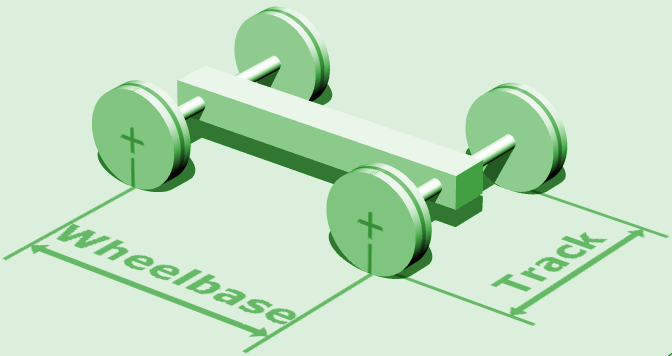
Record the track width, we’ll need it soon.
Wheel Diameter
This one should be self-explanatory. It’s the diameter of the wheels on your drivetrain. The diameter on the wheels are actually slightly different than the diameter advertised by Vex (and, as is typical of Vex, this is not documented anywhere). For that reason, LemLib includes constants for all the different wheels, as follows:
Note
If, for whatever reason, you want a custom wheel size: you can input a number instead of a constant
Wheel Type |
Actual Size |
LemLib Constant |
|---|---|---|
New 2” |
2.125 |
|
New 2.75” |
2.75 |
|
Old 2.75” |
2.75 |
|
Half-Cut New 2.75” |
2.744 |
|
Half-Cut Old 2.75” |
2.74 |
|
New 3.25” |
3.25 |
|
Old 3.25” |
3.25 |
|
Half-Cut New 3.25” |
3.246 |
|
Half-Cut Old 3.25” |
3.246 |
|
New 4” |
4.00 |
|
Old 4” |
4.18 |
|
Half-Cut New 4” |
3.995 |
|
Half-Cut Old 4” |
4.175 |
|
Record the wheel diameter, we’ll need it soon.
Horizontal Drift
Don’t worry about horizontal drift, we’ll cover it in the tuning tutorial. For now, just set it to 2.
Configuration
We now have all the necessary information to configure the drivetrain. We will use the Drivetrain class to store this info, see the example below:
Important
This needs to be created after the motors and motor groups have been created, and has to be outside of a function
// drivetrain settings
lemlib::Drivetrain drivetrain(&left_motor_group, // left motor group
                              &right_motor_group, // right motor group
                              10, // 10 inch track width
                              lemlib::Omniwheel::NEW_4, // using new 4" omnis
                              360, // drivetrain rpm is 360
                              2 // horizontal drift is 2 (for now)
);
Odometry
Odometry is the algorithm that tracks the robots position. It does this through internal motors encoders (IME) and/or tracking wheels and/or V5 Inertial Sensors (IMU). We need to configure these sensors so LemLib can interact with them
IMU
For the IMU, all we need to do is find the port it is connected to. Enter the devices menu on the brain screen, and see what port the IMU is connected to. See the example below for creating the IMU in code:
// create an imu on port 10
pros::Imu imu(10);
Tracking Wheels
Important
Vertical tracking wheels are parallel with the wheels on the drivetrain. Horizontal tracking wheels are perpendicular to the wheels on the drivetrain.
Tracking wheels are independent wheels that have an encoder attached to them. See the image below:
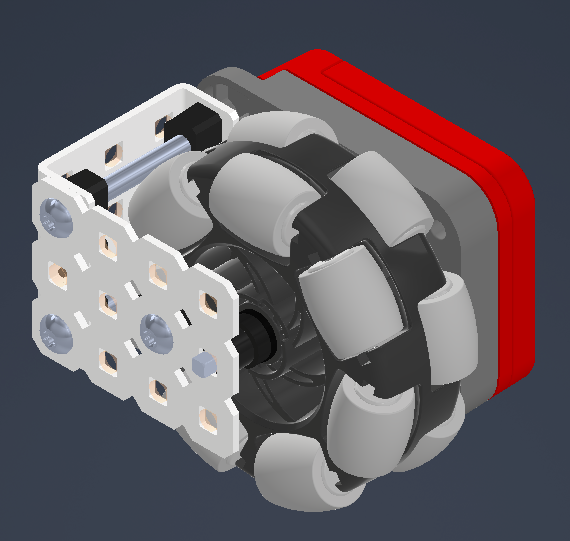
LemLib can work on any tracking setup, but some setups perform much better than others. See the table below:
Heading Tracking:
Recommended |
Acceptable |
Not Recommended |
|---|---|---|
1x IMU |
2x parallel tracking wheels |
IMEs |
Lateral Position Tracking
There are more possible configs for lateral position tracking. Let’s start with the recommended vertical tracking:
Recommended |
Acceptable |
|---|---|
1x vertical tracking wheel |
IMEs |
Recommended horizontal tracking:
Recommended |
Acceptable |
Not Recommended |
|---|---|---|
1x horizontal tracking wheel |
traction wheels |
Omniwheel-only drivetrain |
It’s recommended to use a horizontal tracking wheel even you have traction wheels, since even with traction wheels the robot can still slide horizontally slightly. It is strongly recommended to use a horizontal tracking wheel if your drivetrain only uses omniwheels, since the robot can drift horizontally a lot.
Tip
The optimal tracking setup is 1x IMU, 1x vertical tracking wheel, 1x horizontal tracking wheel
Encoders
Note
If you are not using tracking wheels, you can skip this part
Tracking wheels can use either an Optical Shaft Encoder, or a V5 Rotation Sensor. In our testing, there was no difference in accuracy. Use whatever is most convenient.
Tracking wheels require encoders, and encoders have 2 properties we need to know: the port(s) they are connected to, and whether they should be reversed or not.
First, we need to create the encoders. The process is different for the 2 different sensors:
Optical Shaft Encoder
Important
The optical shaft encoder uses 2 ADI (tri-port) ports. However, there are only a few valid port combinations, they are as follows: (‘A’, ‘B’); (‘C’, ‘D’); (‘E’, ‘F’); (‘G’, ‘H’)
// create an optical shaft encoder connected to ports 'A' and 'B'
pros::adi::Encoder adi_encoder('A', 'B');
V5 Rotation Sensor
The V5 rotation sensor, for this purpose, is identical to the optical shaft encoder. The difference is that it uses a V5 smart port, not ADI ports. See the example below:
// create a v5 rotation sensor on port 1
pros::Rotation rotation_sensor(1);
Determining Reversal
Next, we need to determine if the encoders are reversed or not. We will determine this by printing their values to the brain screen. Use the snippet below to print the encoder readings to the brain:
Important
remove the while loop in initialize after you have determined whether the tracking wheels should be reversed or not
// replace 'A', 'B', with the ports the sensor is connected to
pros::adi::Encoder vertical_encoder('A', 'B');
// replace 1 with the port the rotation sensor is connected to
pros::Rotation horizontal_sensor(1);

// this runs at the start of the program
void initialize() {
    pros::lcd::initialize(); // initialize brain screen
    while (true) { // infinite loop
        // print measurements from the adi encoder
        pros::lcd::print(0, "ADI Encoder: %i", adi_encoder.get_value());
        // print measurements from the rotation sensor
        pros::lcd::print(1, "Rotation Sensor: %i", rotation_sensor.get_position());
        pros::delay(10); // delay to save resources. DO NOT REMOVE
    }
}
Tip
if the sensors readings are not changing or show very large numbers (>1000000), you’ve likely specified the wrong ports for the sensors
Use the snippet in your program and run it. When you push the robot forwards, the measured position of the vertical encoder(s) should increase. If they decrease, the sensor(s) needs to be reversed. When you push the robot to the right (relative to the robot), the position measured by horizontal encoders should increase. If they decrease, the sensor(s) needs to be reversed.
To reverse an ADI Encoder, simply pass true to the encoder constructors after the ports. For a rotation sensor, make the port number negative as with motors. See the example below:
// reversed ADI Encoder
pros::adi::Encoder adi_encoder('A', 'B', true);
// reversed rotation sensor
pros::Rotation rotation_sensor(-1);
Offsets
Now that we have the encoders configured, we need to determine the offset of the tracking wheels. The offset of the tracking wheel is equal to the length of the line perpendicular to it that ends at the tracking center. To help us understand, let’s take a look at the diagram below:
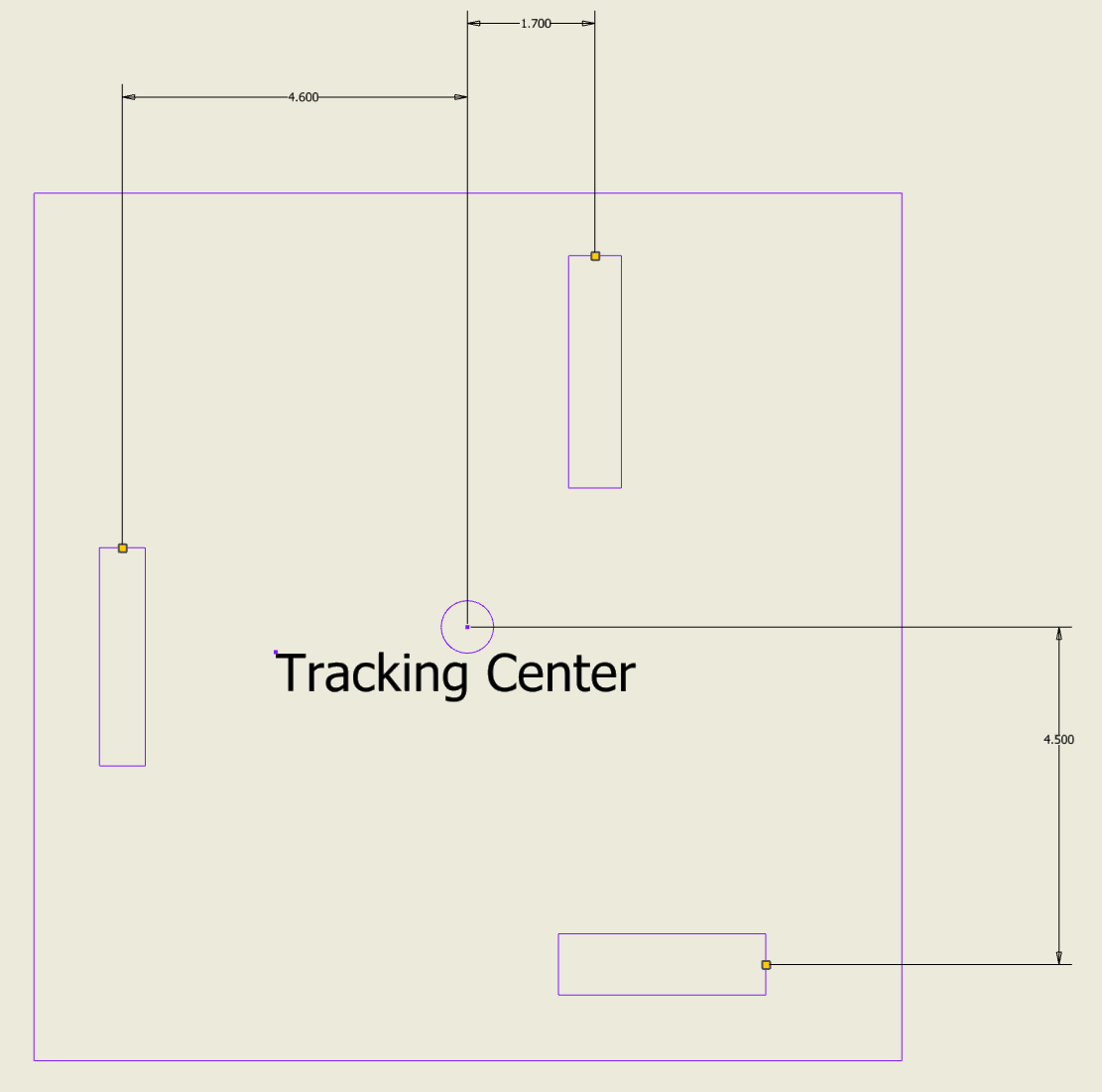
In the diagram, there are 3 tracking wheels: one vertical tracking wheel on the left with an offset of 4.6”, one vertical tracking wheel on the right with an offset of 1.7”, and one horizontal tracking wheel at the back with an offset of 4.5”
The offset of a tracking wheel can be positive or negative, depending on whether its a vertical or horizontal wheel and where it is relative to the tracking center. See the tables below:
Vertical Tracking Wheel
Position |
Sign |
|---|---|
Left |
- |
Right |
+ |
Horizontal Tracking Wheel
Position |
Sign |
|---|---|
Back |
- |
Front |
+ |
Wheel Diameter
As said previously, the marketed diameter of wheels do not match their actual diameter. See the “Wheel Diameter” section in the “Drivetrain” tutorial for more info.
Gear Ratio
Users may wish to gear their tracking wheels. Contrary to what you’d expect, its not done to increase the precision of the sensor. Instead, tracking wheels may be geared to make them thinner. The gear ratio is equal to the teeth of the driven gear divided by the teeth of the driving gear. If you don’t gear the tracking wheel, set the gear ratio to 1.
Config
Now that we know all the properties of the tracking wheel, we can initialize our tracking wheels in code:
// horizontal tracking wheel encoder
pros::Rotation horizontal_encoder(20);
// vertical tracking wheel encoder
pros::adi::Encoder vertical_encoder('C', 'D', true);
// horizontal tracking wheel
lemlib::TrackingWheel horizontal_tracking_wheel(&horizontal_encoder, lemlib::Omniwheel::NEW_275, -5.75);
// vertical tracking wheel
lemlib::TrackingWheel vertical_tracking_wheel(&vertical_encoder, lemlib::Omniwheel::NEW_275, -2.5);
Config
Now that we have configured all the sensors we need for
lemlib::OdomSensors sensors(&vertical_tracking_wheel, // vertical tracking wheel 1, set to null
                            nullptr, // vertical tracking wheel 2, set to nullptr as we are using IMEs
                            &horizontal_tracking_wheel, // horizontal tracking wheel 1
                            nullptr, // horizontal tracking wheel 2, set to nullptr as we don't have a second one
                            &imu // inertial sensor
);
PIDs
We aren’t going to tune the PIDs in this tutorial, but we will in the next. For now, just copy/paste the code below into your project:
// lateral PID controller
lemlib::ControllerSettings lateral_controller(10, // proportional gain (kP)
                                              0, // integral gain (kI)
                                              3, // derivative gain (kD)
                                              3, // anti windup
                                              1, // small error range, in inches
                                              100, // small error range timeout, in milliseconds
                                              3, // large error range, in inches
                                              500, // large error range timeout, in milliseconds
                                              20 // maximum acceleration (slew)
);

// angular PID controller
lemlib::ControllerSettings angular_controller(2, // proportional gain (kP)
                                              0, // integral gain (kI)
                                              10, // derivative gain (kD)
                                              3, // anti windup
                                              1, // small error range, in degrees
                                              100, // small error range timeout, in milliseconds
                                              3, // large error range, in degrees
                                              500, // large error range timeout, in milliseconds
                                              0 // maximum acceleration (slew)
);
Final Configuration
Now we have all the necessary information to configure LemLib. See the code block below:
// left motor group
pros::MotorGroup left_motor_group({-1, 2, -3}, pros::MotorGears::blue);
// right motor group
pros::MotorGroup right_motor_group({4, -5, 6}, pros::MotorGears::green);

// drivetrain settings
lemlib::Drivetrain drivetrain(&left_motor_group, // left motor group
                              &right_motor_group, // right motor group
                              10, // 10 inch track width
                              lemlib::Omniwheel::NEW_4, // using new 4" omnis
                              360, // drivetrain rpm is 360
                              2 // horizontal drift is 2 (for now)
);

// imu
pros::Imu imu(10);
// horizontal tracking wheel encoder
pros::Rotation horizontal_encoder(20);
// vertical tracking wheel encoder
pros::adi::Encoder vertical_encoder('C', 'D', true);
// horizontal tracking wheel
lemlib::TrackingWheel horizontal_tracking_wheel(&horizontal_encoder, lemlib::Omniwheel::NEW_275, -5.75);
// vertical tracking wheel
lemlib::TrackingWheel vertical_tracking_wheel(&vertical_encoder, lemlib::Omniwheel::NEW_275, -2.5);

// odometry settings
lemlib::OdomSensors sensors(&vertical_tracking_wheel, // vertical tracking wheel 1, set to null
                            nullptr, // vertical tracking wheel 2, set to nullptr as we are using IMEs
                            &horizontal_tracking_wheel, // horizontal tracking wheel 1
                            nullptr, // horizontal tracking wheel 2, set to nullptr as we don't have a second one
                            &imu // inertial sensor
);

// lateral PID controller
lemlib::ControllerSettings lateral_controller(10, // proportional gain (kP)
                                              0, // integral gain (kI)
                                              3, // derivative gain (kD)
                                              3, // anti windup
                                              1, // small error range, in inches
                                              100, // small error range timeout, in milliseconds
                                              3, // large error range, in inches
                                              500, // large error range timeout, in milliseconds
                                              20 // maximum acceleration (slew)
);

// angular PID controller
lemlib::ControllerSettings angular_controller(2, // proportional gain (kP)
                                              0, // integral gain (kI)
                                              10, // derivative gain (kD)
                                              3, // anti windup
                                              1, // small error range, in degrees
                                              100, // small error range timeout, in milliseconds
                                              3, // large error range, in degrees
                                              500, // large error range timeout, in milliseconds
                                              0 // maximum acceleration (slew)
);

// create the chassis
lemlib::Chassis chassis(drivetrain, // drivetrain settings
                        lateral_controller, // lateral PID settings
                        angular_controller, // angular PID settings
                        sensors // odometry sensors
);

// initialize function. Runs on program startup
void initialize() {
    pros::lcd::initialize(); // initialize brain screen
    chassis.calibrate(); // calibrate sensors
    // print position to brain screen
    pros::Task screen_task([&]() {
        while (true) {
            // print robot location to the brain screen
            pros::lcd::print(0, "X: %f", chassis.getPose().x); // x
            pros::lcd::print(1, "Y: %f", chassis.getPose().y); // y
            pros::lcd::print(2, "Theta: %f", chassis.getPose().theta); // heading
            // delay to save resources
            pros::delay(20);
        }
    });
}
Conclusion
You have now configured LemLib! We’ll cover driver control next.